
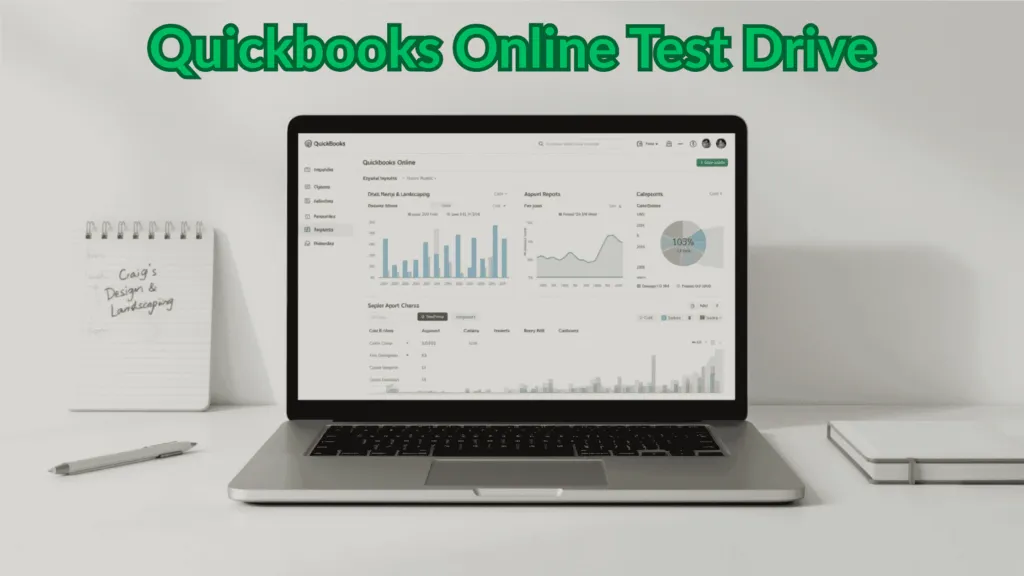

If you’re new to QuickBooks Online (QBO), getting started might seem overwhelming. Fortunately, Intuit provides a powerful resource known as the QuickBooks Online Test Drive walkthrough, a free demo environment where anyone can explore the platform using a sample company. Whether you’re a student learning accounting or a small business owner getting familiar with bookkeeping, this walkthrough will help you understand the essential tools and features that make QBO one of the most widely used cloud accounting systems today.
The Test Drive uses a fictional business called Craig’s Design and Landscaping Services, giving users access to a fully functional version of QBO without requiring a subscription. You can practice entering transactions, viewing financial reports, and customizing settings in a risk-free space. Just remember: the system resets every time you close your session, so be sure to complete each task before exiting.
Navigating the Chart of Accounts
One of the first places to explore is the Chart of Accounts, the list of all accounts used to classify financial activity. A well-structured chart of accounts makes reporting easier and ensures accurate bookkeeping. If you’d like to back up or analyze this list outside the platform, QuickBooks Online allows you to export the chart directly to Excel.
To take it a step further, you can also enable account numbers within QBO. Turning on this feature lets you assign numerical identifiers to each account, adding consistency and organization. Typically, account numbering follows a standardized format: assets in the 1000s, liabilities in the 2000s, and so on. Once the feature is activated, you can manually assign numbers by editing your existing accounts.
Exploring Dashboards and Reports
The Dashboard is the home screen in QuickBooks Online and offers a clear visual overview of your business finances. From income and expense summaries to bank balances and trends, it gives users a quick way to assess financial health at a glance. While dashboards provide a big-picture view, detailed insights can be found in the Reports section.
Many users rely on the Trial Balance report to review account balances across assets, liabilities, and equity. This report is especially helpful at the end of a reporting period or before preparing formal financial statements. Once customized for the appropriate date range, reports can be exported to Excel or PDF formats, making it easy to share data or complete assignments outside of QuickBooks.
Recording Sales Activity
Recording income in QBO is a straightforward process that supports both credit-based and immediate sales. If you’re invoicing a customer to be paid later, use the Invoice form. For sales where payment is collected at the time of transaction, a Sales Receipt is more appropriate. Both forms allow you to enter customer information, select services or products, and calculate totals, including tax if applicable. Once completed, you can save and email the form directly from within the platform.
Why This Matters for Learners and Professionals
These foundational tasks of setting up accounts, reviewing dashboards, running reports, and entering sales are all critical skills for anyone working with accounting software. The QuickBooks Online Test Drive is an excellent practice tool because it mirrors the experience of a live company file without the risk of altering actual financial data. It’s especially useful for students preparing for QuickBooks certification or business owners who want to test workflows before committing to a subscription.
Final Thoughts
QuickBooks Online remains a dominant tool in the world of small business accounting, and learning to navigate it effectively can be a game changer. By starting with the Test Drive and working through key features like the chart of accounts, reports, and transaction entry, you lay the groundwork for more advanced financial tasks down the road. Whether you’re studying for a class or running a company, understanding these basics sets you up for success in 2025 and beyond.